이 페이지에서 설명하는 기능을 사용하려면 푸시 알림이 포함된 요금제가 필요해요.
오랫동안 iOS 사용자에게 푸시 알림을 보내려면 먼저 권한을 요청해야 했어요. Android 13부터는 Android 사용자에게도 동일하게 적용돼요.
기본적으로 app-control-panel.com으로 만든 앱은 앱을 일정 횟수만큼 연 후 자동으로 권한을 요청해요. 푸시 알림 설정에서 해당 횟수를 조정할 수 있어요.
앱을 사용하는 동안 다른 시점에 푸시 알림 권한을 요청하려면 다음 JavaScript 함수를 사용할 수 있어요.
JavaScript 함수 사용하기
참고할 만한
executeWhenAppReady() 함수가 포함된 앱 도우미 스크립트를 확인해 보세요. 이 함수는 앱이 준비되기 전이나 웹사이트가 일반 브라우저에서 로드되었을 때 웹사이트에서 앱과 상호작용을 시도하지 않도록 해줘요(ReferenceError, 함수가 정의되지 않음). notificationPermissionsGranted
사용자가 푸시 알림 권한을 허용했는지 확인하려면 이 함수를 사용하세요.
<script>
    try {
        // returns true or false
        let granted = (await notificationPermissionsGranted())["granted"];
    }
    catch (e) {
        // Can occur if:
        // - the app couldn't connect to the native code. Should be very unlikely.
        // - the app couldn't get the push notification permission status. Should be very unlikely.
        // - push notifications are not included in your current plan
        console.log(e);
    }
</script>
requestNotificationPermissions
푸시 알림 권한 요청 메시지를 표시하려면 이 함수를 사용하세요.
이 함수는 불리언 매개변수 하나를 받아요. 이 매개변수는 사용자가 이전에 일반 권한 요청을 거부한 경우 설정을 열지 여부를 결정해요. 다음은 Android와 iOS에서 열리는 설정 페이지의 스크린샷이에요.
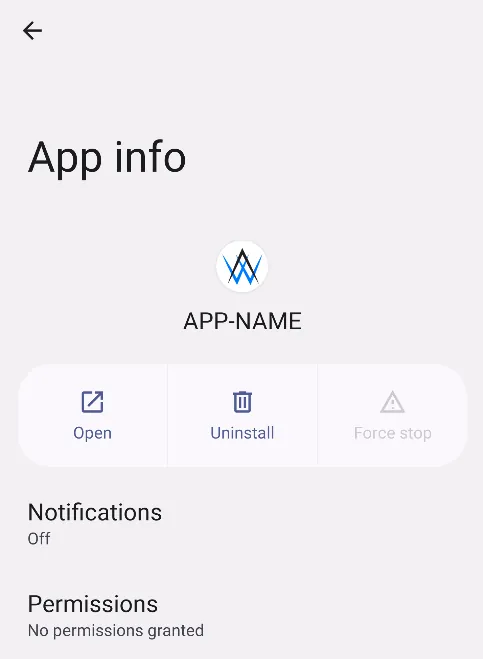
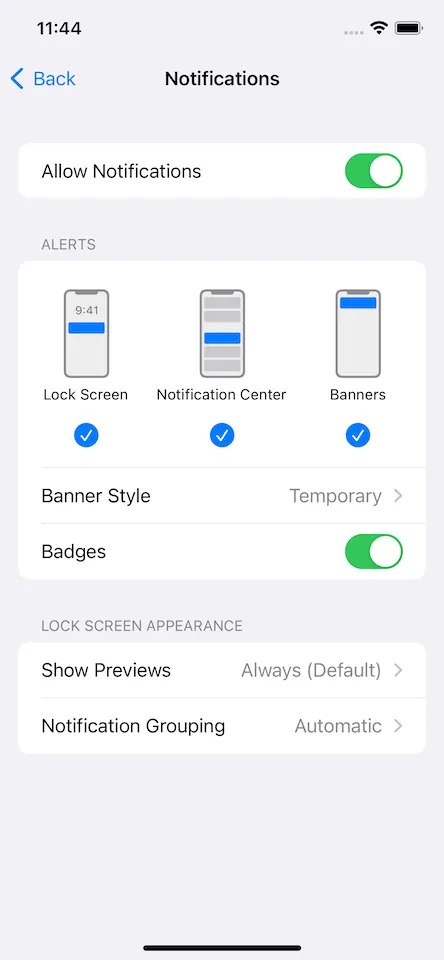
이 동작은 사용자에게 혼란을 줄 수 있으므로 사용자가 푸시 알림을 활성화하고 싶다고 명시적으로 표시한 경우에만 매개변수를 true로 설정해야 해요. 매개변수가 false로 설정되어 있으면 이전 권한 요청이 허용되지 않은 경우 함수가 아무 작업도 하지 않을 수 있어요.
<script>
    try {
        let openSettingsIfNecessary = false;

        // doesn't return anything
        await requestNotificationPermissions(openSettingsIfNecessary);
    }
    catch (e) {
        // Can occur if:
        // - the app couldn't connect to the native code. Should be very unlikely.
        // - the app couldn't ask for push notification permissions. Should be very unlikely.
        // - push notifications are not included in your current plan
        console.log(e);
    }
</script>